EN · NOTES
My TV Wasn't Slow. It Was Busy: One Prompt, No Root, No New TV
My TCL Android TV felt slow, but the hardware was not the whole story. One guarded prompt, run through CleanYourTV, disabled the telemetry and sponsored rows, kept the apps I use, and left a restore path back.
Published: October 24, 2026
Updated: October 24, 2026
8 min read
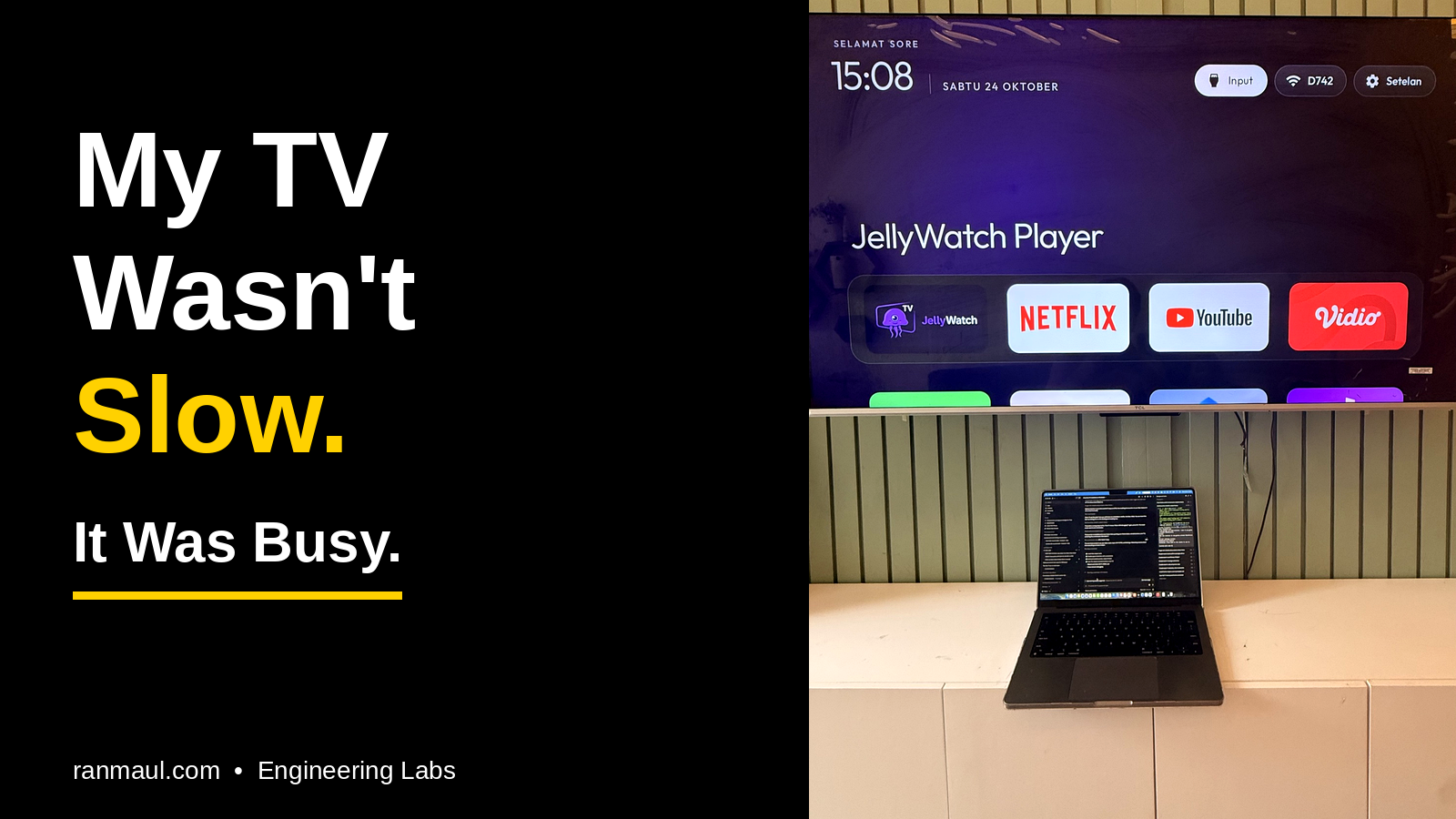
My TV wasn't slow. It was busy.
Every time I opened the home screen, it had other jobs to do first. It loaded sponsored rows I never asked for. It ran telemetry and background services I never opened. Only after that work did it get around to showing Netflix, YouTube, and Vidio. The video apps were fine. The home screen was crowded.
So I did not buy a new TV. I ran one prompt, through an open source project called CleanYourTV, on my TCL Android TV. The TV now feels fast in normal use. Netflix, YouTube, and Vidio are still there. HDMI, the remote, casting, and Wi-Fi still work. And I kept a way back to the old home screen.
This article explains what that prompt actually did, why it worked, and where its limits are. It is not a benchmark report. I did not measure RAM or frame times. "Super fast" here means the everyday feeling: the home screen opens, the remote responds, and I am watching instead of waiting.
#What "slow" means on a budget Android TV
A budget TV can play video well and still feel slow. Playing a stream is one job. Running a home screen full of recommendations, ads, and background services is many jobs at once, and they compete for the same CPU and memory.
That distinction matters. If the problem were only weak hardware, the fix would be new hardware. If the problem is competing software, the fix is to stop the software you do not use.
CleanYourTV starts from that second view. It does not overclock anything. It removes work from the home screen path.
#Why the usual fixes do not stick
Clearing a cache helps for a day. The services come back, because nothing changed about what the TV loads at startup.
A factory reset is stronger, but it also restores the original problem. The manufacturer launcher, sponsored rows, and preloaded services return with it. You then spend an evening signing in again, only to land back where you started.
Buying a new TV can work, but it is an expensive answer to a software question. Before spending, it is worth checking whether the TV is slow or merely busy.
#What CleanYourTV actually does
CleanYourTV is an open source kit for Android TV and Google TV. It works over ADB, the same debug bridge Android phones use, over Wi-Fi. No cable is needed, and no root is needed.
It does three things, in order:
- Back up first. It saves the installed package list, the disabled package list, system properties, and settings, and it writes a restore script.
- Disable, do not uninstall. It disables manufacturer telemetry, ad services, content rows, and preloaded junk with
pm disable-user. Nothing is uninstalled. A disabled package can be re-enabled, which is why restore is possible. - Replace the home screen. It installs a small native launcher and makes it the default home screen.
The prompt is the interesting part. You do not paste a blind command. You paste instructions for a coding assistant, such as Claude Code, Codex, or Gemini CLI, running on a computer on the same Wi-Fi as the TV. The assistant probes the real TV, sorts the packages it finds, and is told to ask before touching anything that depends on your preferences.
That is also why my prompt had extra guards. I told the assistant to check my TV first. It had to keep my apps, HDMI, remote, casting, and Wi-Fi working, save a way back to my old home screen, and ask me before installing anything or changing Home. Those guards are not decoration. They are the difference between debloating and breaking a TV you still need every night.
#Check the TV first
Before any change, write down three things:
- Your TV model. The bloat differs by brand, so the assistant needs the real model, not a guess.
- Your keep-list. Name the apps and functions that must survive. Mine were Netflix, YouTube, and Vidio, plus HDMI input, the remote, casting, and Wi-Fi.
- Your way back. Confirm where the backup and restore script will live before anything is disabled.
Some packages must never be disabled. The TV app and input services that play HDMI and the tuner, the input and source menu, remote control and Bluetooth pairing services, the on-screen keyboard, Google Play Store, and Play Services all stay. Android core packages stay too. A package name alone does not always say what a package does, so the prompt tells the assistant to inspect its activities and services first, and to ask when it is still unclear.
If your TV runs Samsung Tizen or LG webOS, this tool is not for you. It is built for Android TV and Google TV. The upstream prompt also says it will not work on Fire TV as a home screen replacement.
#The one prompt, step by step
The flow below follows the upstream prompt and README. Do it in one sitting, with the TV on.
1. Turn on developer options on the TV. Go to Settings, then Device Preferences, then About. Press OK on Build seven times until the TV says you are a developer. Go back to Developer options and turn on USB debugging. If you see a Network debugging or ADB debugging toggle, turn that on too.
2. Put the project on your computer. Clone the repository and start your coding assistant inside that folder, so it can reuse the tested tools instead of writing new ones from scratch:
git clone https://github.com/Gathin23/cleanyourtv.git
cd cleanyourtv
3. Paste the prompt, with your model filled in. Open PROMPT.md in the repository and paste the prompt text into the assistant, with your TV model in place of the placeholder. When the TV asks "Allow USB debugging?", press Allow on the TV remote.
4. Let the assistant probe before it changes anything. It should list installed packages and sort them. The groups are telemetry and analytics, content and ad services, background services you probably do not need, preloaded apps, and streaming apps. It should ask about anything unclear, and about anything you might use.
5. Approve each install and each Home change. This is the guard that matters most. A new launcher and a new default home screen are visible changes. Do not let them happen silently.
On some Google TV sets, port 5555 stays closed because the set only offers Wireless debugging. In that case, use Developer options, then Wireless debugging, then Pair device with pairing code, and give the assistant the code and port it asks for. Note that Android switches Wireless debugging off whenever Wi-Fi drops.
One more quirk is worth knowing before you start. Some sets cut power to their USB ports while USB debugging is on. A USB speaker, drive, or Ethernet adapter on that port can go dead until debugging is off again. If your network itself comes through a USB Ethernet adapter, say so at the start and finish the whole job in one sitting.
#The way back, and closing ADB
A debloat without a restore path is a gamble. This one has two closing steps, and both matter.
First, the restore script re-enables everything that was disabled. If a kept app misbehaves, or you simply prefer the old home screen, you can go back without reinstalling the system.
Second, close network ADB when you are done. Switch USB debugging and Network or ADB debugging off on the TV, revoke the USB debugging authorisations, reboot, and check that the port refuses connections. Port 5555 is plaintext, and on some firmware any device on the local network can get a shell. Leaving ADB open after the job is finished trades a faster home screen for an open door.
#What this does not prove
This article proves a narrow claim: on my TCL, with my keep-list, one guarded prompt made everyday use feel fast again, and nothing I use broke. It does not prove your TV will feel the same. A different brand, a different launcher, or a different set of preloaded services can change the result.
It also does not prove the TV is objectively faster in a measured sense. I have no before and after numbers to show you, and I will not borrow numbers from someone else's TV and present them as mine. The honest claim is smaller, and therefore more useful: the home screen stopped doing work I never asked for, and the apps I open every night still work.
#Checklist, if you try it
- Confirm Android TV or Google TV, not Tizen or webOS.
- Write your keep-list: apps, HDMI, remote, casting, Wi-Fi.
- Confirm the backup folder and restore script before any disable.
- Turn on USB debugging, and Network or ADB debugging if present.
- Paste the prompt with your real TV model, and approve installs and Home changes yourself.
- When finished, turn debugging off, revoke authorisations, reboot, and verify the port is closed.
- Keep the restore script. It is your way back.
My TV was not asking for new hardware. It was asking for fewer jobs. One prompt gave it that, with the old home screen still reachable if I change my mind.
#References
- Gathin23. CleanYourTV, README. https://github.com/Gathin23/cleanyourtv
- Gathin23. CleanYourTV, PROMPT.md. https://github.com/Gathin23/cleanyourtv/blob/main/PROMPT.md
- CleanYourTV project site. https://cleanyour.tv/